View an overview of read and approved documents
Profit will keep track which users have read and/or approved a document. Approving a document is mandatory if this has been set in the document template.
|
Contents |
InSite has different pages for viewing documents.
An author views read or approved documents:
- Open the site.
- Click on: My submitted documents.
- Open the document.
- Click on the action: Read by.
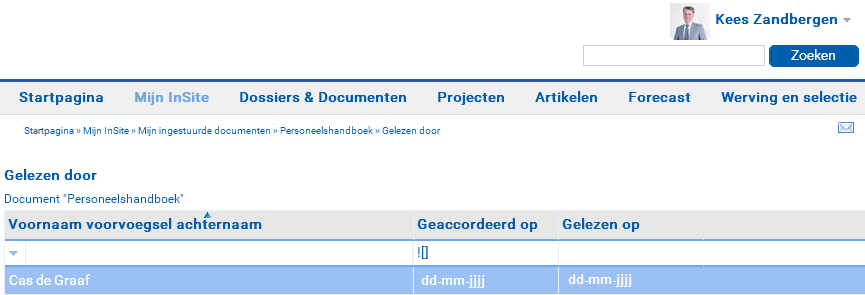
The user views read documents:
- Click on: My read documents.
This choice is only available if the site manager has added this to the InSite menu.
Read documents for each employee:
You can also check which documents an employee has read for each employee.
- Click on: Employees or My employees.
- Open the employee. You will see the employee's master card.
- Click on the action: Documents read.
This choice is only available if the site manager has added this to the Go directly to menu.
A page will be displayed with all documents to which the user has access. You will see in the Read on and Approved on columns whether the employee has already read and/or approved the documents.
View an overview of read and approved documents (Profit Windows)
You can view documents through the properties of the document template.
View read and/or approved documents:
- Go to: General / In & OutSite / Document template.
- Open the template on which the document is based.
- Go to the tab: Documents.
- Open the document.
- Go to the tab: Read by.