Configure a workflow for a profile with linked document
If you add a For information task, you can consult the generated document through the workflow in InSite. This step is not mandatory because you can also consult the document through the dossier item properties.
To link a document to a profile:
- Go to: CRM / Dossier / Configuration / Dossier item type.
- Open the properties of the dossier item type..
- Go to the tab: Workflow.
- Open the properties of the workflow.
- Check if the workflow contains a 'For info' task.
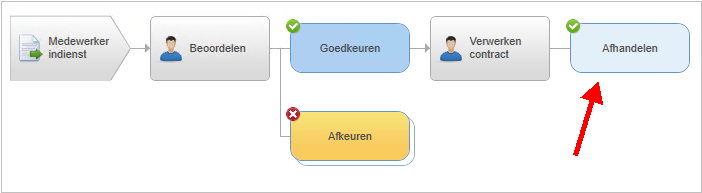
- If the For info task is missing, you add it so that the workflow has the structure as above.
- The destination of the For information task is Sender. Add this destination.
- Publish the workflow after you have changed it.
- Close the Workflow Editor.
- Click on: OK.