OutSite DNS validation failed during the request. What can I check?
If the DNS validation has failed, follow the steps below:
Note:
AFAS Support is unable to assist you with creating DNS records. Please contact your system administrator for this.
1. Check the request with your DNS hosting provider
First, check that you have set up the request correctly with your DNS hosting provider. You will have a URL with ‘www’ and a URL without ‘www’. These might look like this:

Note:
With some DNS hosting providers (such as TRANS IP), you do not need to include the full TXT record. In this case, you enter the TXT record without the domain name.
So, instead of entering _acme-challenge.werkenbij.enyoi.nl, you enter _acme-challenge.werkenbij.
In this case, your hosting provider will automatically add the domain to the record (for example, enyoi.nl).
Why do you have to do it this way? If, for example, you enter _acme-challenge.werkenbij.enyoi.nl with the hosting provider TRANS IP, the record will actually be created as _acme-challenge.werkenbij.enyoi.nl.enyoi.nl, with the result that AFAS and Let’s Encrypt cannot validate the request and your OutSite site cannot be created.
2. Check that the TXT record is present in the DNS
This is a prerequisite for the request to be validated by AFAS and Let’s Encrypt. Carry this out in one of the following two ways:
Via Powershell
Do the following:
- Resolve-DnsName _acme-challenge.afas.nl -Type TXT
The result will then look like this, and you can find the contents of the TXT record you entered under ‘strings’:

Via MxtoolBox.com
- Go to: https://mxtoolbox.com.
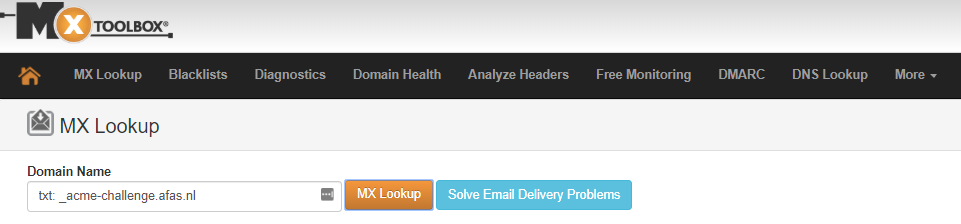
- Enter this at Domain Name: TXT: [name txt record] (see screenshot).
Example:
TXT:_acme-challenge.afas.nl
- Click the orange button: MX Lookup.
If the record has been created correctly, the result will be:
3. I get the following message when renewing the certificate: The site’s IP address is [IP address]. The A record for domain [Domain] points to [IP address]. Ensure that the A record points to [IP address], otherwise your site will not work.
This can be resolved by configuring the A record correctly and ensuring that the A record is not pointing to the wrong address (usually due to an incorrect CNAME).
You can check this in PowerShell using the following command:
Resolve-DnsName [domain name] -type a
If the output shows the correct IP address, then it is set up correctly.