Link a document to a profile

You link all the documents you want to generate automatically to the profile.

To link a document to a profile:

  1. Go to: General / In & OutSite / Profile.
  2. Open the properties of the profile.
  3. Go to the tab: Document.
  4. Click on: New.
  5. Select the document layout.
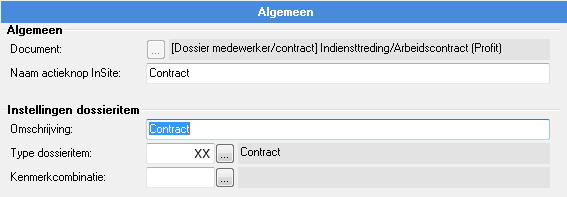
  6. Enter the description for the action button in InSite in InSite action button name.

    This is the button you can use to generate and view the document in InSite.

  7. Complete the remaining fields.

    Ins_Document koppelen aan profiel - document koppelen

    When a document is generated, a dossier item is automatically created with the document as an attachment. The description you enter here is the description Profit will use as default for the dossier item.

  8. Click on: Finish.
  9. Click on: OK.

See also

  • Feature group

Directly to

  1. Configure a profile with a linked document
  2. Configure documents for profiles
  3. Configure a dossier item for a profile with linked document
  4. Link a document to a profile
  5. Configure a workflow for a profile with linked document
  6. Profile
  7. Add a profile
  8. Authorise a profile
  9. Change the properties of a profile
  10. Change and link the contexts (field settings) of a profile
  11. Workflow changes by a reviewer
  12. Configure combined changes to salary, contract, timetable and job
  13. Link a wage component to a profile
  14. Custom tabs in a profile
  15. Entry logging in InSite
  16. Delete a profile