The Profit tile (Citrix) does not start. How can I fix this?

Clicking the Profit tile doesn't work? Then there may be a problem with the browser's caching. Use the Ctrl+F5 keyboard shortcut to refresh the page and the caching. After this, click the tile again.

Is the tile not working after the action above? Then you should determine if this is due to the network or the computer(s).

  • Check if a collegue can start Profit via Citrix from another pc.
  • Check if it's possible to start Profit using 4G or another network.

If you can start Profit from another location, there is a network problem. In this case, ask your administrator to check the system requirements. If Profit can be started from at least one other computer, use the following steps.

1. Can my computer find the https://portal.afasonline.com address? (DNS)

Sometimes, a computer may not find an address. During this step, you will test whether your computer can find the address of the Profit server. (For the IT people: the domain of the AFAS Online Citrix NetScaler.)
Go to https://portal.afasonline.com.

Do you get to see the same address and message as in the figure? Then the DNS is not an issue. Go to the next point.

Do you see something else? Contact your system administrator or IT party and show the address and error message.

Information for the system administrator:

  • You can configure a different (secondary) DNS server temporarily as a test or workaround. For example, 8.8.8.8 of Google or the one of OpenDNS: https://www.consumentenbond.nl/alles-in-1/alternatieve-dns-instellen.

    Note:

    Restore the settings after the test or implement the change in consultation with your system administrator because adding an external DNS server may lead to issues for internal services of the corporate networks.

  • Is it because of the DNS of the Internet provider? Contact your Internet provider to ask why this address cannot be determined and whether this situation can be resolved. Please also submit an incident for AFAS Support. We want to identify what caused this and, if required, also contact the Internet provider(s) from AFAS where this issue is a problem. Send an incident for the 'New sign-on method' component with a description of the problem and a screenshot of https://portal.afasonline.com and the ‘Standard test’ of https://dnsleaktest.com.

2. Do you use a proxy, firewall, SSL scanning or deep packet inspection

Is, for example, the following being used:

  • Proxy
  • Firewall
  • SSL scanning
  • Deep packet inspection
  • Link aggregation (for example, combining 2 external Internet connections)

Then check whether it works when you specifically configure that the new sign-on method for AFAS Online traffic must be allowed through without issue (whitelist). Or try to switch off the relevant technology temporarily.

Note:

if you configured something for AFAS Online before, check the addresses. The addresses for the new AFAS Online sign-on method are different than in relation to the previous platform.

Is a proxy being used? Then check whether it works when you configure that the IP range 185.46.182.0/24 (therefore 185.46.182.1 up on to and including 185.46.182.254) must be allowed through the proxy correctly or whether it may make a connection bypassing the proxy.

Also see:

  • System requirements

Clean up your Citrix installation and re-install Citrix

Sometimes a file is damaged or a file hasn't been updated correctly bij Windows during an installation process. For this, Citrix provides a Receiver Clean-Up Utility.

  1. Download ReceiverCleanupUtility.zip and unpack the zip file.
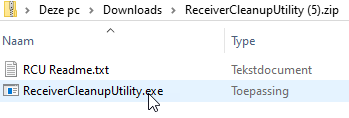
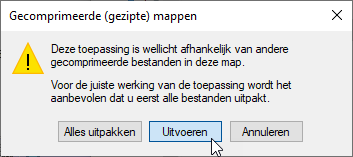
  2. Double click the ReceiverCleanupUtility.exe to start the cleanup process.
  3. Grant permission to for the program to make changed to your computer.
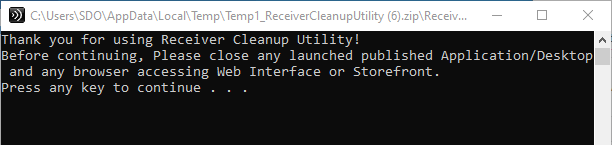
  4. Press Enter to continue.

  5. Citrix Workspace will be removed from your computer. After this, a message will appear to confirm that the de-installation has been completed.
  6. Reinstall Citrix again using this page.

    Note:

    Before re-installing Citrix, check if the old version is no longer present on your computer.

  7. Restart your computer once the installation has been completed.

Directly to

  1. Logging into AFAS Online
  2. Logging into AFAS Online for the first time using two-factor authentication.
  3. Logging in with AFAS Pocket using a unique number
  4. Signing on by means of two-factor authentication
  5. Switching the authentication method
  6. Forgotten my telephone in relation to two-factor authentication
  7. Using a web version instead of Citrix Receiver
  8. Change personal data/I have a new phone
  9. Signing on by means of Single sign-on
  10. Logging in through text messaging will stop as of 1-1-2022