Set the theme for a banner
You can record an individual style for a banner in the form of a List, Buttons or a Drop-down List.
Example:
List |
Buttons |
Drop-down list |
|
|
|


To set up a list banner:
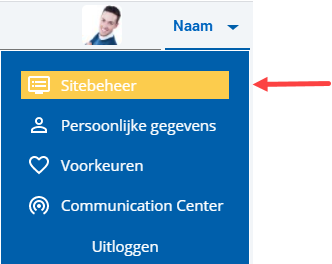
 Log on and start Site management.
- Click on: Themes.
- Select the theme.
You can now immediately edit the theme.
- Click on: Banner in the Parts frame.

- Click on: List banner.
- Select the underline check box if you want to underline each line in the list.
- Select a value for Normal text colour, Emphasis text colour and Extra emphasis text colour.
You can enter other values to be used when the visitor hovers over the banner with the mouse.
- Click on: Modify.
- Click on: Publish.
- Click on Yes in the message.
See also:
|
Directly to |